Local backup of live security camera streams
Back up your camera footage locally — to your own chosen storage, your own computer / server, and according to your own rules.
– No forced dependence on cloud storage.
– Full control over your camera footage.
– Easy to configure and use.
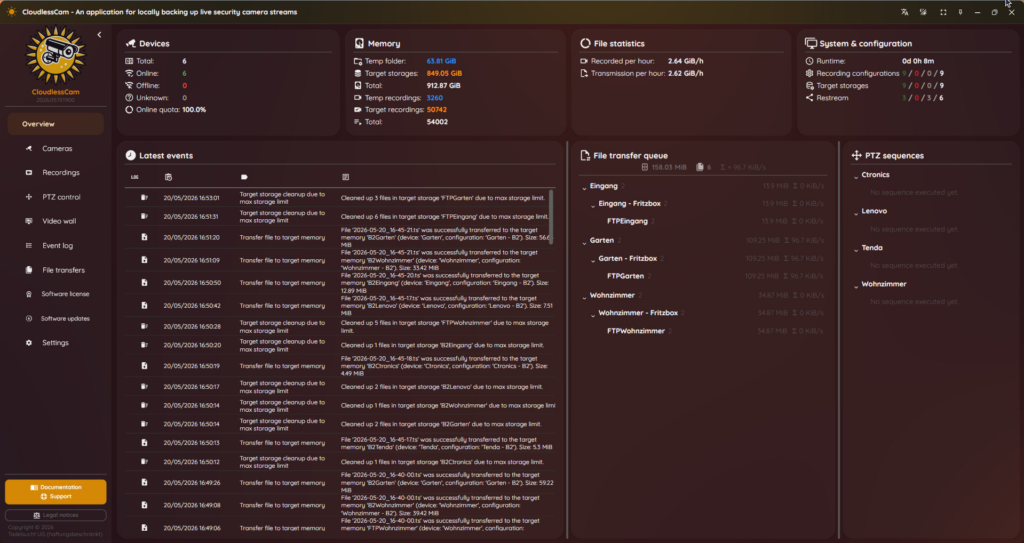
– All-in-one network video recorder (NVR) software.

Quick overview of the program’s features
Security
– Your own chosen storage location
(Local, network, optionally various storage providers)
– Optional AES-256 encryption
– Offline without an internet connection usable
Streams & Cameras
– Protocol support:
ONVIF, RTSP, HTTP, …
– Recording schedules
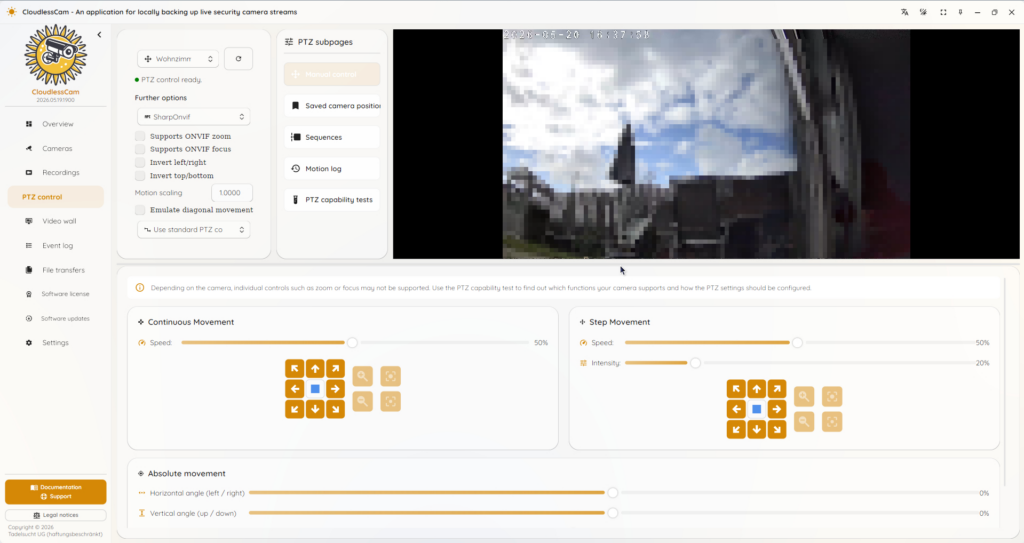
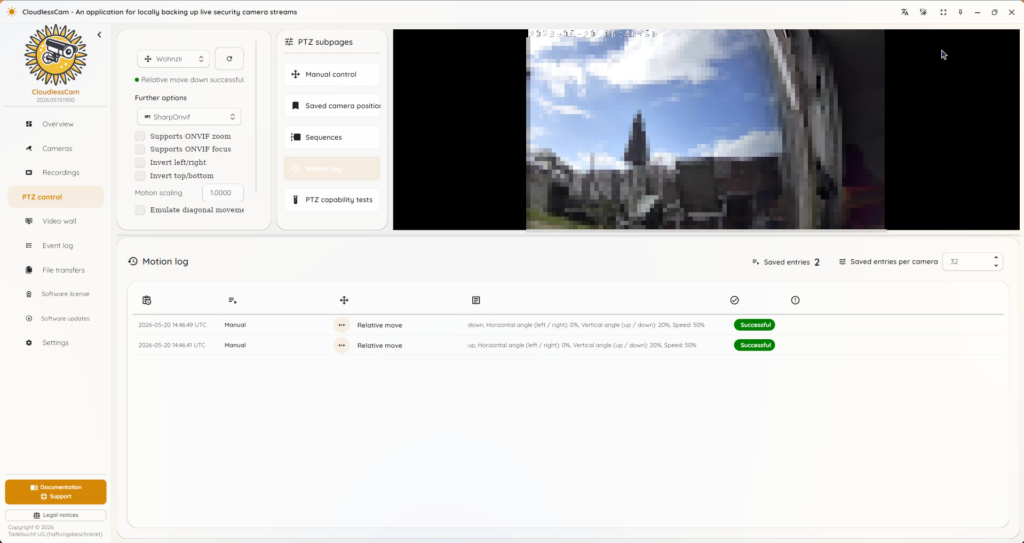
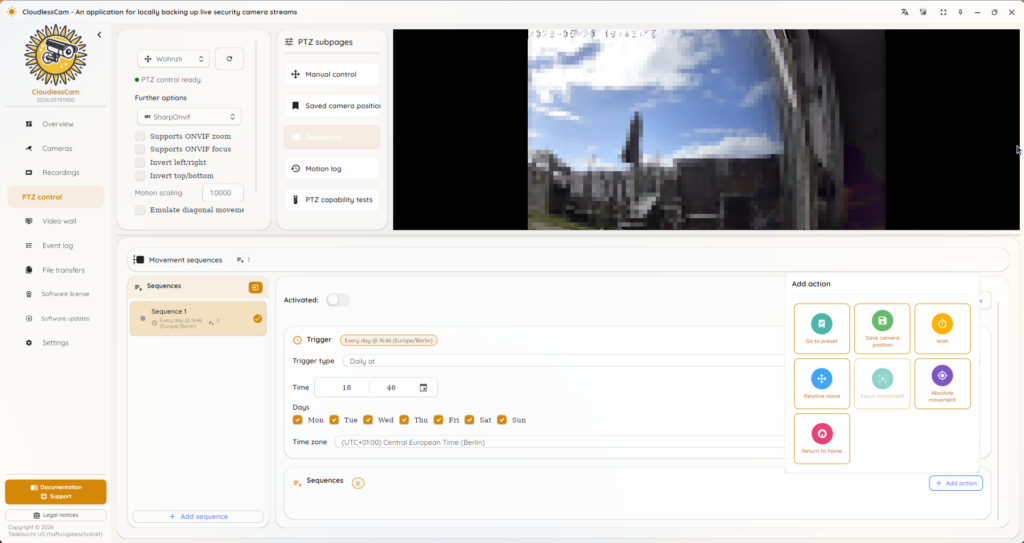
– Camera motion control (PTZ)
– Image settings: Color correction, white balance, rotation, …
Video player
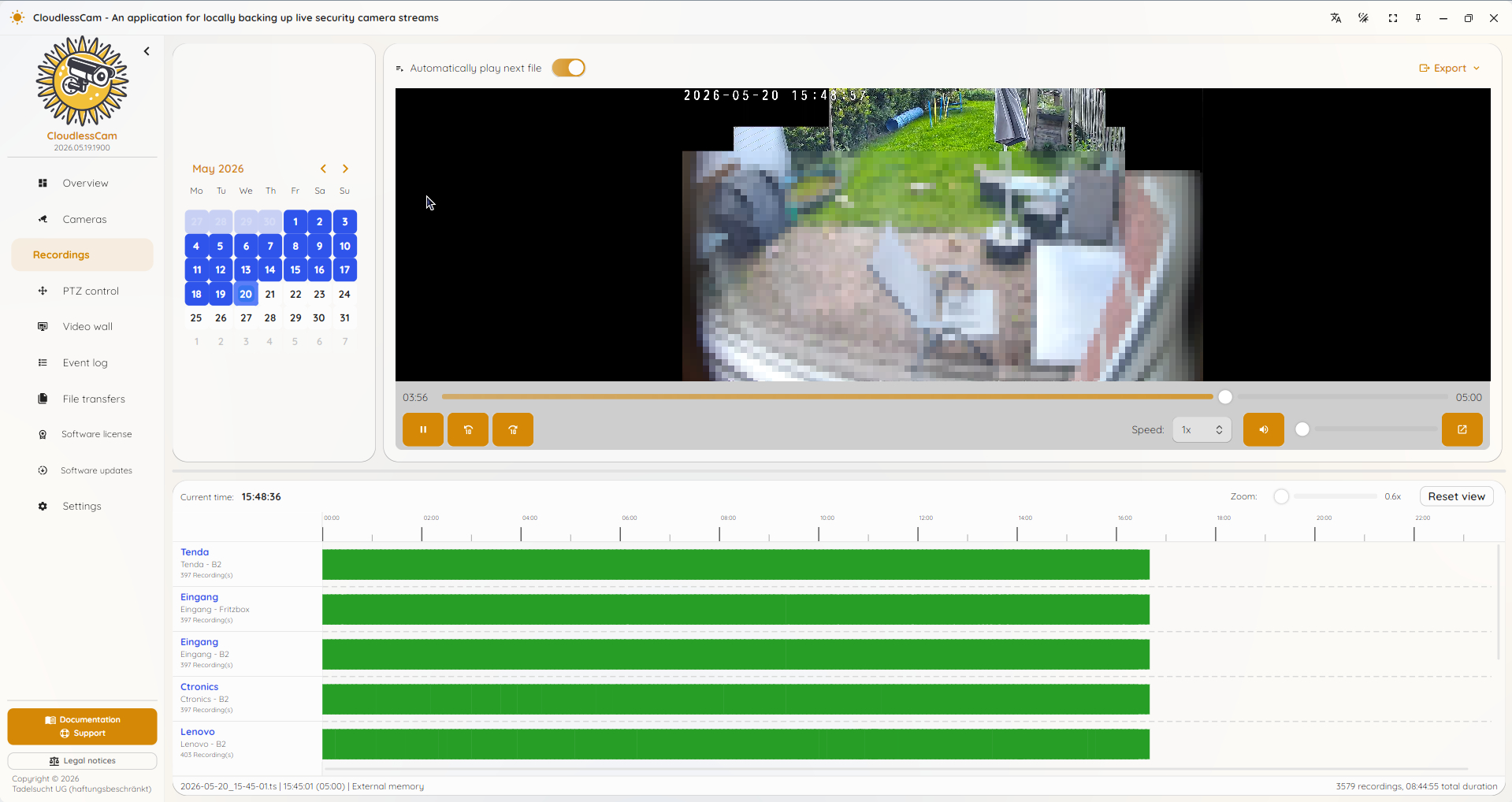
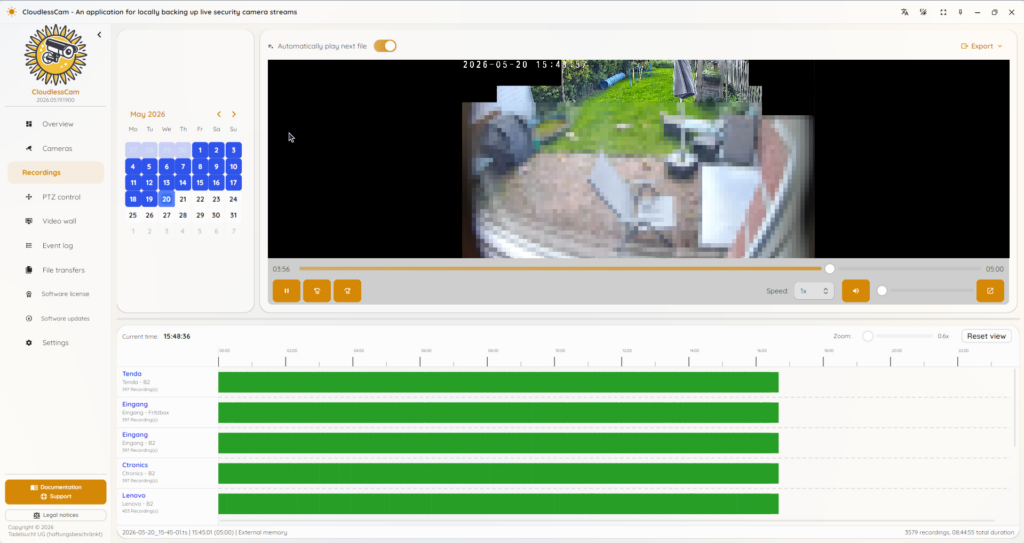
– Recording overview:
With date selection and timeline
– Standalone desktop player
– Optional web player
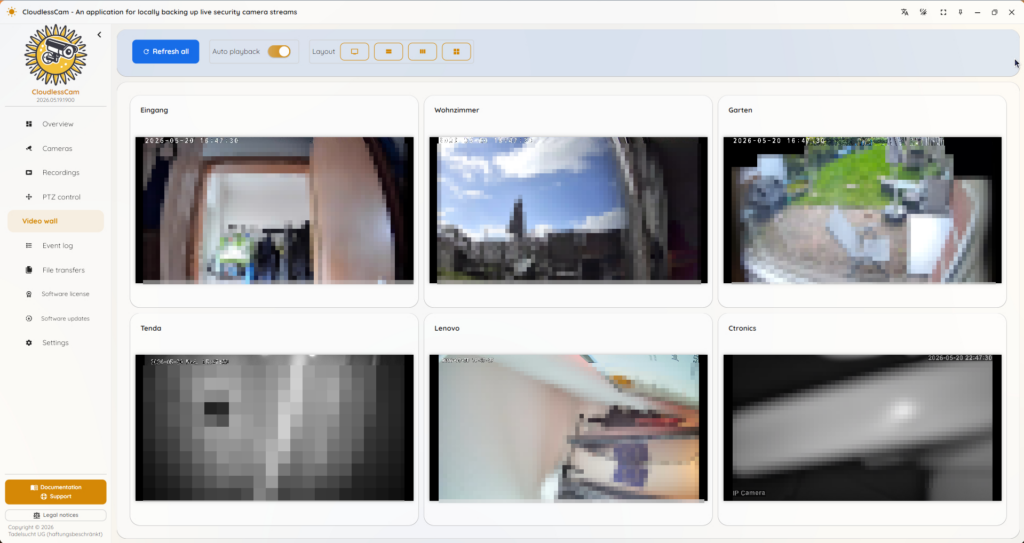
– Live video wall
Cross-platform*
– Windows
– MacOS
– Linux
*) Individual features or displays may vary depending on the operating system.
Universal data formats
– Video and audio codecs can be configured.
– Recordings can be played back with any common video player, even without CloudlessCam.
– Encrypted recordings can be decrypted with archive utilities (e.g. 7-Zip) using the correct password.
CLI & Server
– Optional command line (CLI)
– Optional web player server
– Optional API server
– Optional MCP server
– Server access restriction:
Password or OAuth

Is my security camera compatible with CloudlessCam?
As a rule, most IP cameras and security cameras are compatible with CloudlessCam if they provide a directly accessible video stream over a common protocol. These include, for example, ONVIF, RTSP, HTTP, HTTPS, or other stream addresses. If the camera’s stream can be opened in a video player such as VLC Media Player, it can usually also be recorded with CloudlessCam.
For some cameras, ONVIF, RTSP, or the free video stream must first be enabled in the camera settings or the associated smartphone app. Enter your camera’s make and model to find relevant information about compatibility, setup, and availability of a free local video stream that can be used independently of the manufacturer’s app: (After entering it, a suitable Google search for your camera opens; ideally, this takes you directly to instructions for your model.)
Now CloudlessCam download for free without registration and try it for your use case:
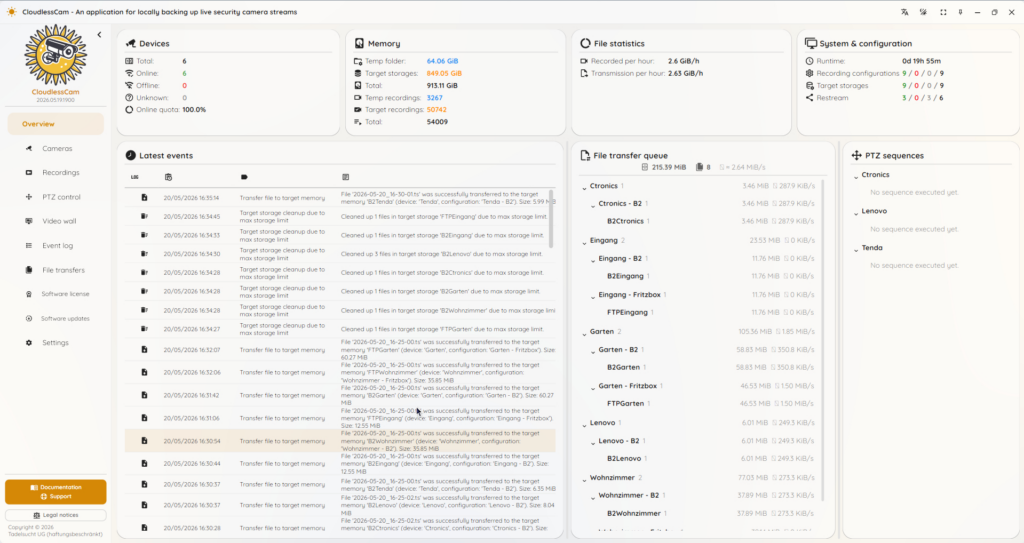
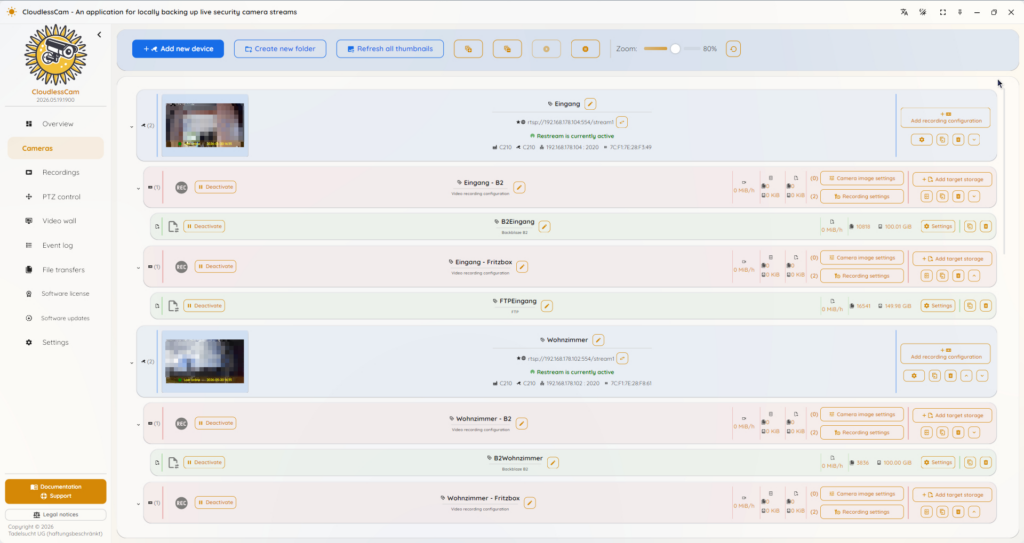
Screenshots of the program

Prices and license packages
1 active camera recording
Free with all features offered by the program.
The free camera recording remains available even after purchasing a license.
Example: With the license “3 active camera recordings” a total of 4 active camera recordings can be used — 3 through the license plus the free camera recording.
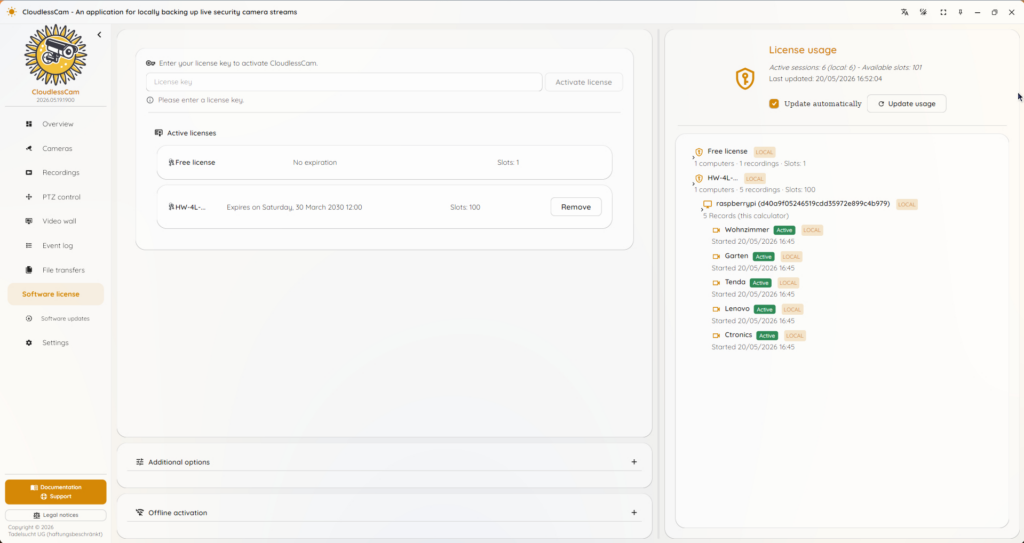
Activating a license within the software: After purchasing a license, the license key must be activated online once within the software so that the respective computer can operate under the license. After successful licensing, the application no longer needs a connection to the license server and can be used completely offline with the license until the license term expires. For computers without network access, a separate activation procedure is available so that licensing can also be performed on the offline device. A single license can be used simultaneously on multiple computers that have been activated online once, with the computers sharing the available slots for active camera recordings.
3 active camera recording
1 Annual license
€23.99
(Price / camera / year ≈ €8)
3 Annual license
€61
(Price / camera / year ≈ €6.78)
10 active camera recording
1 Annual license
€59.99
(Price / camera / year ≈ €6)
3 Annual license
€152
(Price / camera / year ≈ €5.07)
20 active camera recording
1 Annual license
€99.99
(Price / camera / year ≈ €5)
3 Annual license
€254
(Price / camera / year ≈ €4.23)
50 active camera recording
1 Annual license
€229.99
(Price / camera / year ≈ €4.60)
3 Annual license
€586
(Price / camera / year ≈ €3.91)
Frequently asked questions (FAQ)
Is my security camera compatible with CloudlessCam?
As a rule, most IP cameras and security cameras are compatible with CloudlessCam if they provide a directly accessible video stream over a common protocol. These include, for example, ONVIF, RTSP, HTTP, HTTPS, or other stream addresses. If the camera stream can be opened in a video player such as VLC Media Player, it can usually also be recorded with CloudlessCam.
Which cameras are supported?
CloudlessCam supports many IP cameras, network cameras, and security cameras. Cameras with ONVIF or RTSP are particularly suitable. Cameras can be searched for automatically on the network or added manually using a stream address.
What can I do if my camera is not found automatically?
First, check whether ONVIF or RTSP is enabled in the camera settings. On some cameras, this feature must also be enabled in the associated smartphone app. Also check whether the camera and computer are on the same network and whether a firewall is blocking the connection. If automatic discovery does not work, you can enter the stream address manually.
Are my recordings uploaded to CloudlessCam?
No. CloudlessCam was designed for local, self-controlled video recording. Your camera streams and recordings are not uploaded to CloudlessCam servers. If you configure a cloud storage destination such as Google Drive, OneDrive, Dropbox, S3, or WebDAV yourself, recordings are transferred only to the storage destination you choose.
Can I use CloudlessCam without the cloud?
Yes. CloudlessCam can be used entirely locally. You can store recordings on a local hard drive, a network drive, or your own server. Cloud storage is only an optional possibility.
Which storage destinations does CloudlessCam support?
CloudlessCam supports local folders, network drives, WebDAV, SFTP, FTP, S3-compatible storage, Backblaze B2, OneDrive, Dropbox, and Google Drive. Alternatively, you can store recordings in a local folder that is then synchronized by another program.
Can I test CloudlessCam for free?
Yes. CloudlessCam can be downloaded and tried for free. Without a purchased license, a free license is active automatically. It allows one active camera recording or one active recording stream at a time.
What does a recording slot mean?
A recording slot allows one active camera recording or one active stream at a time. If you want to record multiple cameras simultaneously, you need correspondingly more available recording slots. Multiple recording configurations for the same camera can use the same slot.
Can I record multiple cameras simultaneously?
Yes. The number of active camera recordings at the same time depends on the available license and your system’s performance. For multiple cameras, you need enough recording slots as well as sufficient storage space, network bandwidth, and processing power.
Which operating systems does CloudlessCam run on?
CloudlessCam is available for Windows, Linux, and macOS. For Windows, an installer and a portable ZIP version are available. Corresponding packages are available for Linux and macOS. The feature set is largely the same across platforms, although individual differences may occur depending on the operating system.
Can CloudlessCam run on a Raspberry Pi?
Yes. CloudlessCam can run on a Raspberry Pi 4 or newer with a 64-bit operating system. For continuous operation, limit the number of simultaneous streams and store recordings on external storage, a NAS, or a server whenever possible.
Do I need an internet connection?
A permanent internet connection is not required for normal recording of local cameras. However, an internet connection may be required for online license activation, updates, or certain cloud storage services. Offline activation is available for systems without direct internet access.
CloudlessCam cannot be installed. What does Windows SmartScreen mean?
Windows SmartScreen may display a warning for new or not-yet-widely used installation files. In this case, you can click “More info” in the SmartScreen window and then “Run anyway.” This message does not automatically mean that the file is dangerous; it often only means that Windows has not known this version of the program for long enough.
Can CloudlessCam run in the background?
Yes. CloudlessCam can be used for continuous background operation. A CLI daemon is available for this purpose. For stable 24/7 operation, the Pacemaker background service can also be used; it monitors the background process and restarts it if problems occur.
Can I view recordings later?
Yes. CloudlessCam includes a recordings view with a calendar, video player, and timeline. In addition, CloudlessCam Player is available as a standalone desktop application, as is CloudlessCam Web Player, which allows recordings to be viewed in a browser. You can also access your storage directly and play recordings saved in a common video format with a standard video player.
Can I view multiple cameras live simultaneously?
Yes. CloudlessCam includes a video wall where multiple live camera feeds can be displayed simultaneously in a grid view.
Does CloudlessCam support PTZ control?
Yes, if the camera supports PTZ functions and they are accessible via ONVIF. Pan, tilt, and zoom can then be controlled in CloudlessCam. Depending on the camera model and ONVIF implementation, individual PTZ functions may work differently.
Why is the live image or playback stuttering?
Stuttering can be caused by high resolution, a high frame rate, too many simultaneous streams, a slow network connection, or high system load. For live viewing, use the camera’s substream whenever possible, reduce the resolution or frame rate, and check the network connection.
Why are no recordings being created?
Check whether the recording configuration is enabled, whether an active storage location has been assigned, and whether any configured schedule currently allows recording. Also check whether the camera is reachable and whether enough recording slots are available. See the event log for further information.
Why don’t I see new recordings in the destination storage immediately?
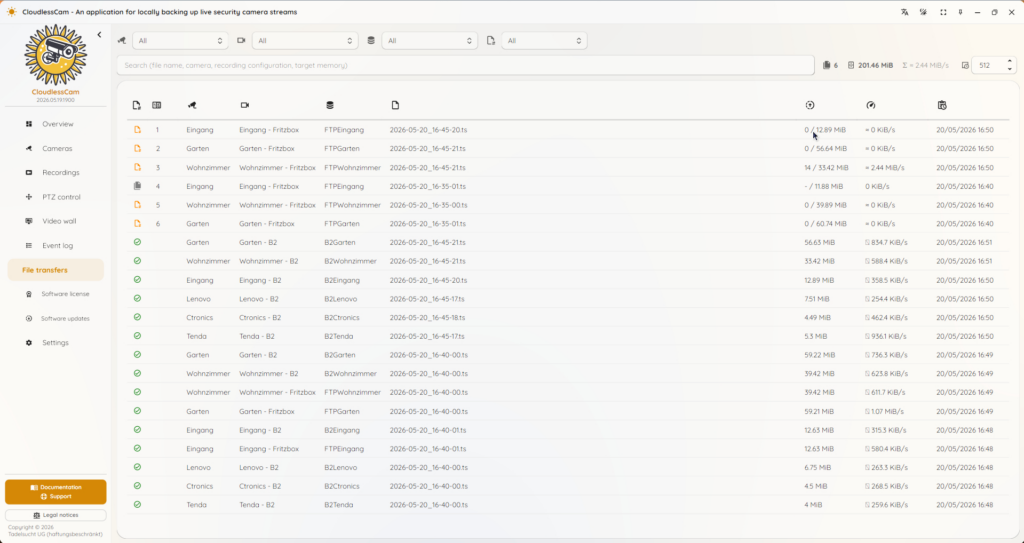
New recordings are first cached locally and then transferred to the destination storage according to the configured transfer interval. Depending on the storage destination, network connection, and file size, it may therefore take some time before new recordings are visible in the destination storage.
Can I have old recordings deleted automatically?
Yes. You can configure the retention period and storage limits. This allows CloudlessCam to automatically remove old recordings when they are too old or when a defined storage limit has been reached.
Can I encrypt recordings?
Yes. CloudlessCam supports encrypting recordings and configurations.
What happens to login credentials for cameras and storage destinations?
Credentials are stored locally in the CloudlessCam configuration. If needed, you can encrypt the configuration to provide additional protection for sensitive credentials. Do not share configuration files with unauthorized persons.
How long is a license valid?
The term depends on the license package purchased and begins immediately after purchase. After a purchased license expires, CloudlessCam remains usable with the free license, but only with the free recording slot.
Can I use a license on multiple computers?
Yes. A license can be activated on multiple computers, but simultaneous use is limited by the purchased license package and the available recording slots. The license page shows which slots are available and which cameras or streams currently occupy slots.
What can I do if I need help?
First, consult the documentation and the event log in CloudlessCam. If you encounter technical problems, you can create a support ZIP containing log files and system information and send it to support together with a detailed description of the problem, if possible.
How can AI agents use CloudlessCam via MCP?
Information about using CloudlessCam with AI agents can be found in the MCP.md file and in the CloudlessCam documentation. The MCP.md file contains instructions for setting up and using the CloudlessCam MCP server. Depending on the operating system, the MCP.md file is located directly in the CloudlessCam installation folder or in the downloaded ZIP package. AI agents, developers, and power users should read MCP.md or the documentation to configure MCP appropriately for their environment.
Now download and free try it!